I’ve always been an Inbox Zero kind of guy, although lately with the whole pandemic thing, that idea has gotten less attractive to many. Yet here I am, still throwing replies out there as quickly as I can, searching for the all elusive “0 messages” banner at the top of my email client. Why? Well here’s a few things I’ve learned:
A 1 minute reply can save a 5 minute reply later: Namely, when an email comes in, I read it and I’ve likely already processed what I need to say back, or what I need to do. If I wait to reply later, I have to “re-do” some of this work – re-read the original message (even if it’s short), and get into the frame of mind for reference. The longer I wait, the longer it takes to get back into that frame.
People infer a lot about you by the promptness of your email replies. We all know logically that people get busy, and that they don’t live to answer emails as soon as they come in. But research also suggests that it’s hard to not let promptness influence your perception of the other person’s likability.
And finally, having a clean inbox helps me properly organize longer tasks – if it take more than 5 minutes, I am conscious that it has to go on my to-do list / project tracker. You shouldn’t use a tool for something it wasn’t designed for – email is not a to-do list, calendars are not a to-do list. To-do lists are to-do lists!
Of course all of this is what works for me – I’m curious what works for you. Are you Inbox Zero, Inbox 80,000, or somewhere in-between? And how does it make you feel emotionally and productively?
I have 2 offices, which means that when someone makes an appointment with me, they need to be aware which office I’ll be meeting them at. My appointment provider (YouCanBook.Me) sends an appointment request to both myself and the person making the appointment, and I then update my copy with the location.
This then sends the location out to the person making the appointment. However what happens if that person isn’t used to appointment requests? Perhaps because they’re a college student, and haven’t experienced them yet? Typically they ignore them, or don’t notice the location line or change at all.
This semester I decided to try a new approach. When a person makes an appointment with me, it enters on my calendar with the prefix “Appointment: ” and then the person’s name. This means I can easily find my “self-set” appointments using Microsoft Power Automate (Flow). My goal was to have a script run every night at 8 PM that scans the next 24 hours of my calendar. If it finds an appointment set by someone, it emails them an automated reminder telling them where to meet me. It took me a couple of hours to get up and running, but is now working beautifully. Below is each step of my flow, and how to create it yourself.
The basic workflow in Power Automate – a Recurrence to run the script at a regular interval, a time zone conversion, querying my Outlook Calendar, and then email each appointment’s attendees.8:00 PM seemed like a good time to remind people about a meeting they had the next day, although you could easily run this the morning of if you wanted to, or before business ended the previous day, say at 4:30.Power Automate grabs events off my calendar in UTC, however I needed to get myself into Central Time for where I’m at in the U.S. I also needed to take the current time and add 24 hours to it, so that I could catch meetings between right now, and 24 hours from now. I used the Dynamic Content Expression Editor to use the addHours(utcNow(),24) line.Next we have to get the list of items. The Filter Query here does the magic – it’s using an ODATA filter for anything that starts with Appointment: (including the space after the colon). This means that it only catches appointments created with that prefix, which is what YouCanBookMe is set to do (Your personal settings may have a different prefix if you’ve changed it).Now that we have our appointments, we need to send an email to the required and optional attendees reminding them. We start by converting the Start Time, again from UTC to Central Time. We then load in an email that we can place the start time and location in.I’ve customized the email slightly in that I added myself in as a BCC (So I can point to it later and say “See, you got this email”). I also had to set the Importance to Normal, otherwise it will send as Low importance.
And that’s it. The script has been running for a few weeks now without issue, and hopefully it will cut down on my frustration this semester with individuals unaware of where on campus I’m meeting them!
One of my classes this semester requires me to track how often students speak in class, and evaluate each comment. I also have students leading discussion, and I need to be able to generate completed rubrics easily for them so they get my feedback.
I’ve found that I can keep track of all of this in an Excel Spreadsheet on my iPad Pro, and that I can also use Excel to generate individual rubrics and a class wide participation report.
Here’s an example workbook that you can download and modify, and some screenshots that explain how it works.
The Participation Tracker screen – as students participate, I type in their names in the Person column (Excel remembers names after awhile, so I only have to type the first few letters), and I make their rating in the Score column. I can also put any comments in that I might need later.A pivot table that summarizes the participations in class, gives me the average score and standard deviation.When a student is presenting, I make my rubric ratings in this spreadsheet page. I can make comments after each rating area, and also know which presentations are coming up next or refer back. I also have a last column that’s “private” to me – it doesn’t show up on the rubric, but is a great place to make notes about something a student said that I might want to put on a quiz or exam.The Rubric Report sheet – I simply change the number in the upper right to the row number I’d like to create a report for, and it populates the information into the Rubric. I can then take a screenshot of the rubric, and upload it to my LMS (Canvas) as a comment.
Hopefully you find the spreadsheet useful – I know I have in just the 2 weeks I’ve been using it. It’s saved me a lot of administrative work, enabling me to do more “fun” pedagogical stuff in class!
Last week I attended a workshop on Differential Education, and realized that I’m already doing something very “differential-ly” – starting this semester in my General Psychology class. Students do a five minute entry ticket each day upon coming into class, and a five minute exit ticket on the way out. Combined, these two tickets count for 50% of their overall course grade, and I grade them not only for participation, but also accuracy. Initially I began creating them using Socrative, however I found it to be a bit buggy for my tastes, and switched to Google Forms.
Here’s what I do each day:
Get to class about 5 minutes early.
Put question on screen and freeze screen. The question slide is always the same, giving a question and URL to go to the “Entry Ticket” form. I use a URL Shortening service so that it’s easy to type in, and I also provide a QR code.
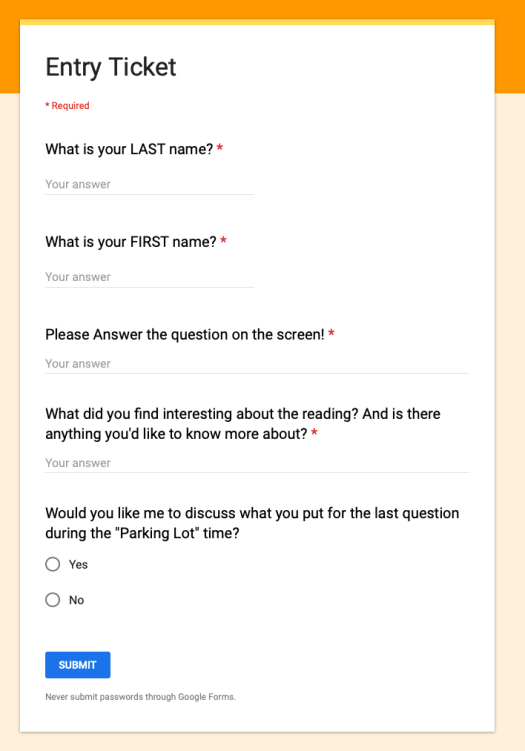
Open up the Entry spreadsheet (which I have bookmarked) and watch the results come in. The students see a form that looks like this, whereas I get a spreadsheet view:
I then update Slide 2 (the ‘parking lot’) in my powerpoint slide deck as things catch my eye. I try to include everything they put “Yes” on and a few things that I find interesting in the other entries.
At the start of class time, I let students know they have 4-5 minutes to complete their entry ticket. Some questions are harder than others, and sometimes students take longer to complete if they have a lot they want to tap out.
About 5 minutes after the start of class time, I let students know that we’re getting started. I typically don’t go over the answer to the question immediately, in case people are finishing up.
Go through slides/activity/etc… for the day.
About 5 minutes until the end of class, put up the last slide in the powerpoint deck. It also has the URL and QR code for a different form (the green form below).
While they’re working on that, I open up the Exit spreadsheet link (bookmarked on the Instructor PC), and watch the results come in. The students see a form that looks like this:
I tell students that I’ll let them know when it’s time to leave, so that the rustling of backpacks and bags isn’t distracting. (“Trust me guys, I’ll let you know when it’s 10:50”)
Around 1 minute left, I usually make some comment about the exit tickets to the class (maybe an observation or a joke), or in some cases I’ll go up to certain students and answer their question or concern (e.g., “Hey AJ – you’re right, it is!”)
After class I sort both spreadsheets, enter the grades into Canvas, enter attendance based off of who responded, and then hide the rows of the spreadsheet so that next time everything is clear. This takes about 10 minutes. Since I’m staying with the same forms and spreadsheets, I can always ‘unhide’ all of the rows if I want historical data, and then re-hide them later.
I’ve found this to work really well this semester. Students are (mostly) reading and engaged. And in the end, it was much easier to set up using Google Forms / Sheets than through Socrative or any other ‘education’ product.
One of the great things about being a professor is that we’re essentially trained to be project managers – people who are specialists in a given topic area but also trained through graduate school to be self-sufficient. It surprises many to learn that when I’m assigned a course to teach, I receive very few ‘mandated’ guidelines. Yes, periodically we have required sections in our syllabi on university policies, or perhaps my curriculum committee (of which I’m a member) requires certain courses to use the same book or have a common assignment. But otherwise, no one tells me what content I must teach, what assignments I must give, or how to evaluate my student’s work. The same is true in the realm of scholarship and service – I am expected to select my own projects, manage them to completion, and provide service to my institution and discipline. When it comes to my formal workday, I’m expected to be in the classroom to teach when assigned, to be available for 10 office hours a week, and to be available for meetings as needed. Beyond that, there is no 8-5 expectation on professors – we’re asked to fit our lives around specific class times, not a traditional workday (Which is also why, at my institution, we don’t get personal leave).
However this level of freedom can be challenging for some. Recently one of my colleagues posted on Twitter a request:
How do you manage to be productive when you do work at home? I usually try very hard to not take work home with me, but when I do I find the quality of work I do is sub par.
As someone who has worked from home a lot in my past (I lived 50 minutes away from my undergrad institution, 120 minutes away from my graduate institution, and a 2 hour commute away from my postdoc), I’ve picked up a few tips I’m happy to share.
1. Have The Essentials At Home
My Home Office Setup, an Apple 27” Cinema Display connected to a 2015 MacBook Pro, with full size keyboard, external trackpad. Wireless headphones and desk fan off to the right.
It is extremely important to have everything you need in your home workspace. In 2010 I bought a 27” Apple Cinema Display for work, and while pricey ($999) I fell in love with it at work. So when I had enough money, I bought a second one for my home office. There is absolutely no way I’d be able to do as much work at home if I didn’t have a large monitor on par with what I have at my office. The portability of a laptop, in my case a 2015 MacBook Pro, is key for a mobile professional – but you need to have a good place to park it at home where you can enjoy larger full-sized screens and peripherals. Also included in the setup is a full keyboard with number pad (essential for entering data), and an external trackpad so I don’t have to reach forward to touch the one on my Mac. Finally I have a set of wireless headphones (Beats Solo 3’s) that I can use to block out the world if need be.
However physical setup is only one part of the essentials – you also need to be able work on anything you need, anywhere you are. To do this, I leverage cloud storage extensively (OneDrive is my preferred storage provider these days, I purchase a home version of Office 365, which provides MS Office + 1 TB of space), as well as iCloud storage. I also install TeamViewer (Free for personal use) on my computer on campus so that I can securely connect up to it remotely in case I do happen to leave a file there. I also never use USB drives if I can avoid them – it’s horrible to have just 1 version of a file, and even worse if you lose the USB drive that the file is stored on, or if the USB drive fails!
2. Have a working To-Do Setup, With Start Dates
One thing I realized years ago was that I needed a To-Do list, and more importantly, I needed one that didn’t show me things I couldn’t do just yet. Having dozens of tasks ahead can be daunting, but it’s even worse when you see things that there is no way you can complete – perhaps you’re waiting on someone else, or they’ve told you “We’ll make a decision on that 3 months from now”. Leave the to-do on the list, and you feel like you’re not accomplishing anything. Take it off, and you never remember to put it back.
So years ago I started setting “start” dates on all of my tasks, so that I wouldn’t see them on my list until the first day I could do them. This helps me focus much more on what I need to do, versus what I will do down the line. It also means that I don’t fear putting a task on my list for the far future. I’ve actually had people remark to me “Wow, I can’t believe you remembered that” – it wasn’t memory, it was the item I put on my to-do list a year ago!
3. Be Mobile
I didn’t have an office for the first half of my professional life. I lived completely out of a bag, setting up shop at coffee shops, fast food restaurants, libraries, and in my car. As a former Windows Mobile MVP, I learned a number of tricks for staying productive while away from a dedicated workspace. They include…
Having a dedicated set of mobile tools – power cables, chargers, mobile mouse, anything I could possibly need. I don’t take all of them everywhere everyday, but I do keep them in a special case at home, so I can easily pull out what I need for that day. Also makes traveling a breeze – everything is in one place, and I don’t have to tear apart my home every time I pack – my bedside charger stays where it is, for example.
Exploring all possible productivity applications to see if they’re worthwhile. Some are, some aren’t. For example, recently I’ve been using Siri Shortcuts on my iPhone and iPad to script my nightly journal entry, to quickly open up files that I use frequently (e.g., open this specific spreadsheet), and more. Lately the mobile Microsoft Office suite has really stepped up it’s game – I can pull up pretty much anything on my phone or iPad that I can bring up on my computer.
Upgrade your tools as needed and use them to your advantage. See this as an investment in yourself and your productivity. While it’s tempting to tell people “Look, I just use my phone to make phone calls”, you’re basically saying to them “Look, I use this thing for just a small fraction of what it can do.”
4. Stop saying “I don’t have time”
I’ve heard people say “I don’t have time to learn X” or “I don’t have time to work on Y”. To them, I say “You can’t afford NOT to learn X” or “work on Y”. XKCD comics has a good example of what I mean here – this one. Think of learning new skills as an investment – one that crosses over from work to personal life, office to home productivity.
5. Have a Clear Goal
Finally, when I’m working remotely, I realize I need a clear goal of what I need to do. When working at my office, this happens somewhat naturally – my mind natively thinks of things that I do at work. However when I’m out of my office, I need to remind myself (with the help of my to-do list) what needs to get done, when it needs to get done, and what today’s task builds on for the future. It helps me avoid distraction, because I know what needs to get done. I’m not wandering aimlessly at home thinking “Wouldn’t it be more fulfilling to watch TV right now” – I instead have the thought “It’s going to be great to get this done before I go to my office tomorrow morning”.
Working from home (or anywhere other than your office) is a freeing experience, and something that I definitely think is useful for an academic – part of our jobs is to be in tune with the world around us, lest we become antiquated. However it can be challenging, and ultimately everyone finds their own solution. Just keep plugging away at the problems you find in your own system until you have it up and running smoothly!
Just a quick post in case you’re old fashion and like downloading actual copies of what you listen to, instead of streaming. I’ve been using this solution for 2-3 years now, and have been pretty happy with it:
Find the song you want on YouTube – Pretty much everything is there these days.
Use a tool to download it – I prefer Wondershare AllMyTube – for $29 you can download videos or mp3’s from YouTube and a bunch of other sites. Great for educators to save videos you worry might disappear or if you have a flaky internet connection in your classroom.
Use MusicBrainz Picard (free) to scan the files you download and add appropriate meta data to them.
That’s it. Now you have a shiny MP3 file that you can import into your music manager of choice, including iTunes.
Ran across this nice little trick a few months back. One of the things I miss about SAS was the ability to copy/paste data directly into a SAS script. While it’s nice to load from an external file, for small datasets it can be more useful to have everything in just one file. This is especially useful with students who have trouble understanding the concept of a working directory or file paths in a smartphone app dominated world.
Here’s what I found months ago (I believe on Stack Overflow):
Input = ("Student Pretest Posttest
A 25 27
B 23 23
C 21 22
D 23 29
E 23 24
F 21 19
");
Data = read.table(textConnection(Input),header=TRUE)
t.test(Data$Pretest,Data$Posttest,paired=T)
There are no line numbers on that snippet – you’ve simply got 5 variables with 5 lines of data. The data is then read through a textConnection function into a data table. You can now work with it as you would any other data set.
I’ve always been an Inbox Zero kind of guy before Inbox Zero was even a thing. From the time I got my first email address in 1995 to today, I’ve felt that the inbox should be empty nearly 100% of the time (I’ll outline my own exceptions below). Recently I told a friend that my inbox was empty and he was astonished, envious, and perhaps a little annoyed. It got me thinking about the practice, and about the relative merits or consequences of such a rigorous approach.
My inbox as I started typing this post up.
Inbox Zero has been widely discussed among productivity mavens and life hackers for the last few years, with many staunchly defending it’s usefulness, and others claiming it is a colossal waste of time and energy. Opinions on email seem to be in no short supply – some argue that push is the way to go, others take the opposite approach and pontificate that checking only once or twice per day will up your productivity to the stars.
If it isn’t blindingly obvious by now, the discussion boils down to what works best for the individual. For some, Inbox Zero will be the way to inner zen. For others, the inbox count is just a number, not one to be worried about or praised. In my experience over 20 years, I’ve found that I’m happiest when my inbox is nearly empty, so I keep up with that. If you’re experiencing email overload, you might find Inbox Zero satisfying as well (as soon as you dig out of your current overload!). For what it’s worth, I’ve tried ditching Inbox Zero and experience quite a bit of anxiety over it (which kinda scares me) – I’d like to be ‘cool’ with having stuff in there, but I suppose old habits die hard.
One final note – I mentioned that I do allow email to sit there in some circumstances. What are those?
Emails that serve a reminder function but aren’t important enough to get a real To Do item in my to do manager. So the student who says “I’ll be a bit late for class in 3 hours” may stick around until they arrive in class – the email then gets archived.
Emails that I don’t want to respond to right now! Yes, even though productivity mongers will tell you that you should respond as quickly as you can and not procrastinate, there are times I just don’t want to deal with that email yet.
Emails that I’m planning to show someone later on my mobile device – because once it’s in the black pit of the Archive folder, it can be hard to find it again.
This brings up the last bit of my email peculiarity: I archive everything, and never sort it. Gmail search (for my private email) and Exchange search (for my work email) tend to do things pretty well. I also backup my mailboxes every 6 months or so.
USA Today and others made headlines today reporting “Apple ordered to break into San Bernadino shooter’s iPhone”. The topic of government access to encrypted devices has gotten a lot of attention lately, and I’m not writing this post to take a stance on either side. My goal here is to inform some of my less tech-minded friends of a curious thing I noticed…
Fact: This iPhone was owned by San Bernadino county. Fact: Deploying iPhones to your workers should only be done if they’re properly managed. Fact: Apple’s management software, Profile Manager, allows you to clear passcodes.
Here’s the proof from my own Profile Manager installation – this is the list of options I get when I bring up my own iPhone from the management console:
In case you’re wondering, it’s also possible to prevent a user from wiping his/her iPhone using Profile Manager:
In case you’re wondering what “supervised only” means, it indicates that the phone has to be setup using the Apple Configurator software, which is free.
Obviously I don’t know what happened in this case, and won’t pretend to, but from an IT guy’s perspective, this problem seems like it would have been avoided if the devices were configured appropriately. In any event, I figured this would be useful information to my non-tech friends who noticed it was a government owned iPhone and wondered why the government couldn’t unlock it.
For years I’ve tried to keep a daily diary / journal and have struggled with two problems: Remembering to write, and finding something to write. Lately I’ve tackled the second, and the first is easily solved when you think about it…
In this exercise, I’m using 2 apps on iOS: Day One, an excellent diary app, and Workflow, an excellent automation app. I’ve created a little Workflow module that does the following:
Downloads a daily motivational quote (although you could replace this with any RSS feed item)
Looks up my calendar for the day
Asks me 2 questions (In my example: What do I plan on doing, and how will I do good that day)
Rolls it all together and creates a new entry in Day One.
So with 1 tap of the Workflow shortcut, I have my phone prompting me to create my diary entry (and I can customize the workflow whenever I like). You can get my Morning Journal Workflow here if you’ve already got Workflow installed.
So get Workflow, Get Day One, and get journaling. Having problems with the first issue (i.e. remembering?). Well, just ask Siri to remind you or set a reminder to recur daily. Problems solved!