Artificial Intelligence (A.I.) is changing the way we do things inside and outside of our classrooms. Tools like ChatGPT and other generative A.I. platforms can be powerful allies in your academic work, or they can get you in a ton of trouble. Students want guidance, hence this blog post and infographic. Here are my 3 guiding principles of AI use in my classroom, and in professional life.
1. Generative A.I. is an effective tool, when used with care.
A.I. can help you brainstorm ideas, clarify confusing topics, and even provide feedback on early drafts. It can put things in words that your professor wouldn’t think to use, which may help them click better. And it’s great at proofreading, it will catch all those little things your eye misses. However, simply copying and pasting output without editing or reflection is likely to backfire. A.I. often produces generic or superficial responses, and it sometimes makes factual errors or misinterprets context (it hallucinates worse than you’d think!). It works best when you use it as a collaborator—not a shortcut.
If you rely on it too heavily or uncritically, your work may lose its clarity, depth, or voice. Worse, you may inadvertently turn in something that doesn’t fully address the assignment—or that raises plagiarism concerns. Or both for extra fun! Use A.I. to enhance your thinking, not to replace it.
2. Generative A.I. starts a conversation—you may use it, but you should tell me where, when, and why you’re using it.
Transparency matters. If you use A.I. in your work—whether to rephrase a paragraph, summarize a reading, generate ideas, or check grammar—let me know. I’m not here to penalize you for using helpful tools; I’m here to help you learn how to use them well. But if you just tell me “Nope, didn’t use it at all!”, I have nothing to provide to you in terms of guidance. And Principle 3 will really get you in that case!
Briefly describing how you used A.I. helps me understand your process and support your learning. It also helps create an honest academic environment where we can talk openly about emerging technologies and how they fit into our work.
3. Generative A.I. Helps, but You Own the Work.
When you submit work for a grade, you’re putting your name on it. That means you are responsible for the content, the quality, and the implications of what you submit. If an A.I. tool generates a clunky sentence, makes an inaccurate claim, or uses a tone that doesn’t fit the assignment—and you leave it in—it reflects on you. And you might not want to be known as that person who only speaks in groups of threes and uses em dashes extensively!
Likewise, if I ask you to explain your thinking and you can’t speak to what was written, that’s a problem for professional life. A.I. tools can support your efforts, but they cannot replace the understanding, decision-making, or academic integrity that you bring to your work. You don’t just turn in words—you turn in your thinking.
Final Thoughts
The goal of these principles is not to restrict you, but to empower you. I want you to feel confident and competent in your use of A.I. tools, and I want to help you learn how to use them in a way that complements your own voice and skills. A.I. isn’t going away—so let’s learn how to use it wisely, responsibly, and creatively.
Have questions about when or how to use A.I. in a specific assignment? Just ask. I’m here to help you navigate this new landscape.
We’re at the end of the Summer II term, and I’m reading term papers. It has made me think about the biggest issues I see with student writing today. So here is my list, in no particular order, of my biggest pet peeves. If you are a student in one of my classes, this is your list of things to avoid, because you know I will count off for them.
Writing like you’re giving a powerpoint presentation.
We’ve all seen that standard bullet-point slide from Powerpoint, the one that looks like this:
Thanks to Bing AI for this content, we have our example slide. The problem I see is that students write a paper as a series of disconnected statements like the ones above. A student example might read like this under the section heading “Cat Cuteness”:
Cats have facial features that resemble human babies. They make sounds similar to a baby’s cry. They have soft fur that feels pleasing to touch.
Imagine if you were giving this powerpoint slide as a talk – you wouldn’t just read it bullet to bullet (or at least you shouldn’t do that – a presentation pet peeve of mine is people reading directly off their slides, but that’s a different article). If you were giving the presentation, you’d probably say something like this:
There are a lot of reasons why cats are cute. For example, they have facial features that resemble human babies, and so as humans, we may think of them as similar to our own offspring. They also communicate using sounds that are similar to human infants. Finally, their fur is just so darn fluffy and fun to touch, and when we do that, it releases hormones in both ourselves and our cats, which are enjoyable.
See what happened there? When I talked through the slide, I naturally added in a short introduction (“There are a lot of reasons why cats are cute”), I also put in transitions (“For example”, “They also”, “Finally”), and I expounded upon what I said beyond simple declarative statements. Also, I didn’t need to see the section heading “Cat Cuteness” to know what you were talking about, because it was right in the text.
I refer to these transitions and ability to ignore section headings as “connective tissue”, and many writers forget about it. They focus on content, but don’t realize that they know their own content so well, they don’t naturally think to set it up for a new reader who hasn’t encountered it before. Here are some tips to make sure you’re not doing this:
Imagine that all the section headings are missing from your paper. Would you still know from the first sentence of a paragraph what that paragraph was going to be about?
Imagine that the last line of a previous paragraph was missing – would the first line of this paragraph review what was important previously? Or would it seem like an abrupt shift to the reader?
Imagine that your reader just read the last line of your paragraph – would they know what direction the next paragraph was going in?
To these last two points, it can be helpful to take a paragraph out of your paper and ask a friend “What do you think I just talked about in the last part of the paper?” and “What do you think I will talk about next?” – if they can’t answer those questions, you’ve got to write more, and probably revisit your outline. Which brings me to my next pet peeve.
Outline? What outline?!?
If you sit down to write a paper, and start with the introduction, then stop – you’ve already made a mistake. You should only write the introduction after you have an outline. Your outline doesn’t have to be fancy – you don’t need to use roman numerals and indenting (although it can help), it just has to be a roadmap you can follow. Imagine your instructor has asked you to write a paper on why cats and humans have a symbiotic relationship. You could just sit down and pound out everything you know about cats and humans, but that will likely lead to a stream of consciousness style paper. It will sound like you’re having a conversation with a friend about cats and humans. This seems fine, but your reader is going to be very annoyed – they want to use your paper as a reference material – they want to know facts they can use about the subject. To use a modern analogy – they don’t want to read 70 pages of backstory before you give them the recipe!
Thankfully, today, AI tools allow us to generate outlines pretty easily. I’ll ask Bing AI once more to generate an outline for that prompt. Here’s a PDF of what it came up with.
Let me be honest with you – if a student took this outline, tweaked it, and then wrote the paper based on it’s suggestions, that would likely get an A from me (Assuming it was well sourced and cited). The real power of Artificial Intelligence and Large Language Models is NOT to write the paper for you – it’s to give you ideas to write the best paper possible. And you cannot write a good paper without an outline.
If you turn in a stream of consciousness to me, you will get a low grade. If you use an outline, not only are you organized, you can also easily build in transitions like the ones I mentioned above AND you aren’t dependent on section headings to tell the reader what you’re trying to do. Isn’t software great – of course, it isn’t always perfect, and it definitely can get you in trouble if you decide to copy and paste directly out of it.
Copying and Pasting Nearly Always Leads to Plagiarism
We have a big problem today with people not understanding what Plagiarism is. Great tutorials exist that can help people understand citing and paraphrasing (I particularly like Kosha Bramesfeld’s hosted by the Society for the Teaching of Psychology), but it seems many pretend that changing 1-2 words is sufficient. Here’s an actual example:
Student’s Paraphrased Version: Teachers can improve the utilization of homework by using research-tested strategies and accommodations (McNary, Glasgow, & Hicks, 2005).
Did you spot the “paraphrasing”? The person changed “their” to “the”. Not only is this not paraphrasing, it’s hard to see how it could be an honest mistake.
Now it could be: The person copied that line out of the article and put it in their notes, then when it came time to write the paper, they thought they’d paraphrased it already when they put it in their notebook, but in reality they’d just copied it. For this reason, my syllabus contains the following stern warning: “Copying and pasting from an original source material is never allowed unless you see it explicitly discussed in the directions of the assignment.” I put that line in not to be mean, but to help people avoid honest mistakes – copy and paste can be a dangerous tool. Also good advice: If you aren’t sure if you’re allowed to do something or not – ASK THE PROFESSOR. We can provide guidance before problems arise.
So far we’ve talked about the issues related to transitions, outlines, and plagiarism. Now let’s turn to the last biggest Pet Peeve – APA Style violations.
It Doesn’t Need to Be Perfect, But At Least Try!
I don’t think anyone is an expert in APA Style. But there are several things I would like students to at least try to do because they speak to the deeper tenets of having a style in the first place. Here’s a quick list:
Prefer paraphrasing over direct quoting. APA style is meant to be concise and coherent in one voice. It’s not like MLA – you shouldn’t be taking large chunks of people’s writing and providing them as examples of one’s literary excellence. A scientist might write a 10 page paper – you should be able to sum it up in 1 or 2 sentences, if that. All we care about is who had the original idea, and when it was published. I typically use less than 2 direct quotations in any APA style work I write – I reserve them for when I simply cannot say it any better than the original author.
Understand that we don’t care what something was titled. While it’s pretty common in MLA to see something like “Jonathan Westfall, in his book “Practical R 4″ discusses how to use R to automate the creation of powerpoint slides”, in APA style we would see something like this: “You can use R to create powerpoint slides (Westfall, 2020)”. Notice how it’s more concise and readable?
Focus on content, not filling space – I hate page length guidelines as they typically make students inspired to create mountains out of molehills. I do NOT want you to take a sentence and turn it into a paragraph. I want you to take 10 page papers and reduce them down to 1-2 sentences!
For the love of uniformity, make sure your fonts match. Seeing a font change (for example in the running head) just makes me think you’re sloppy and rushed.
Ultimately writing is difficult to master, and the only way that you do is to, well, write. Set yourself up for success by avoiding these pet peeves – write good transitions and introductions, set up an outline that you can follow, avoid plagiarism, and follow style as best you can, and you’ll be on the right track!
In my classes I’ll often have students give short presentations, and recently I wanted to allow my students to also rate each other. Here’s a very quick and easy way to accomplish that while also having the data analyzed to tell you who is the ‘winner’
Optionally have some way for students to easily get to the form – you could send it out via your LMS or create a QR code that students can scan in class (I chose the latter).
In Google Forms, choose the “Responses” button and then the green Google Sheets link – this will store the responses for your form in Google Sheets.
In the Google Sheets spreadsheet, go to “File” then “Publish to Web”. Choose CSV as your format, and copy the link that it gives you after you press Publish. This is what we’ll feed into R to do our analysis.
Open R, create a new script, and put in these lines:
Modify line 1 to have the CSV file link you got from Step 4, and change line 2 to be the easy-to-remember variable names for your form fields. Lines 3 & 4 simply show how to get summary data for each interest by a group identifier.
6. At this point you could just run the R script after your students enter in their ratings, and it will give you all of the information you need. However I took a little extra step: I installed the script on one of my Virtual Private Servers – it runs the script every minute and creates an HTML report that I can access from Safari on my iPad. That way I can easily see what the group scores were while in class to award the winner. This step takes a little extra time, but it will be worth it, especially if you want to share the results with your students (Or you want them to be able to see the results in near-real-time).
Easy hookup of data to analysis, with a lot of possibilities for customization!
I made this in about 5 minutes… sometimes having the right tool means pay a bit of money to speed up your workflow. Could I have done it for free? Yes. As accessibly? No.
It’s been awhile since I’ve talked productivity on this blog, but recently I’ve had a number of people point out to me that I’m extremely busy. If you don’t know, I have a few different roles professionally and personally – if you’re really curious, here’s the list as of today. But without boring you, know that I have multiple job titles and roles. I’m at the point this fall that I’m openly telling people that if they hear a story of me throwing someone out a window, it’s because that person told me “I’m too busy”, because I don’t know of anyone else on my campus that has as many irons in the fire, as it were, as myself. They probably exist, but haven’t revealed their true amount of overloadedness to me.
Anyway, this post isn’t about how busy I am – it’s about how I maintain a high level of productivity while being so busy. I figure every so often it’s a great idea to point out what I’m doing that makes me productive, so that I can share it with others. Also helps me highlight some of my older content that you may have missed. So here’s what I do:
Everything is on every device or accessible from every device. I wander around with my iPad Pro, which can connect to my MacBook from anywhere, meaning that when I’m out at a meeting across campus and I have a few moments to take care of some work, I can do it remotely.
I also dispatch and answer emails and texts as quickly as possible, so that they don’t bunch up. There is an added psychological benefit both to myself and for myself in this as well. I honestly believe I’m seen as much more competent than I might be just because I get back to people quickly. Don’t get me wrong – I’m not ill-equipped for my job, I just don’t think I’m as great at it as others tell me I am!
I use a calendar booking service (YouCanBookMe) and I send automated reminders to people that we’re scheduled to meet. Prior to this I’d say I probably spent at least 10-15 minutes per day answering emails that purely were about scheduling time to meet. YouCanBookMe, and to a lesser extent, sites like Doodle.com and SignupGenius.com are essential scheduling tools.
In the classroom, I take advantage of technology to facilitate my teaching – through entry/exit tickets and tracking participation in Microsoft Excel. Both save time when entering information into my Gradebook.
While I have 2 offices on campus, I also try to be as productive out of the office as possible. This post, written prior to the pandemic, highlights 5 tips I gave then that helped me weather the “work from home” storm much easier in 2020 than I might have otherwise done.
Sometimes when I get tired of having to type the same things out over and over again, I write them down so I can direct people to them. This might seem a bit callous or flippant, but it’s the honest truth:
Students having issues with registering? See my DSU Probs posts.
Want to know all my best R tips? Read this book (I put 10 years of tips in this)
Want to run a server like I do? Read this book (I put 20 years of tips in this).
And, ya know, posts like the one you’re reading right now!
So there you have it – in very basic terms how I stay productive. What I perhaps didn’t put here is that one also must balance things out within oneself to be productive – if you haven’t thought about it, I suggest two small additions to your life:
Routine / Ritual: Whether it’s a morning ritual to get pepped up, an evening ritual to wind down, or a lunchtime moment of enjoyment, find something that you can structure around and try to hold is sacred. This trains your brain to understand that even when life is absolutely crazy, there are almost always constants. This is also a great way to add new habits to your life that you want to take pride in.
Balance work and life as best as possible. I do this in a few little ways:
Saving work – If something isn’t time sensitive, I have no problem putting it down to do later in the week. It’s a common misconception that you should keep working until your to-do list is empty. The honest truth is that your to-do list should never be empty, but your time sensitive tasks for today should be. Think about it this way: If you have something due in a week, and you know you have a light day later this week, what is better – assign that task to the light day, or do it today and miss out on a) dinner with your spouse, b) a conversation with co-workers, c) a TV show you enjoy relaxing to? A-C are much better options than being bored at 10 AM on Thursday because you did the work Tuesday night.
Don’t be afraid of embracing unmotivated boredom time at work. I have, on several occasions, freaked out co-workers by dropping by their offices and saying “I’m bored, what are you up to?”. They usually tell me “Don’t say you’re bored – it looks bad!” – but the honest truth is, sometimes we aren’t motivated. Sometimes we are bored. And those are times when a little human interaction can be really beneficial. Not only does it give you something to do that many people find rewarding (e.g., talking to people they like, assuming you like your co-workers), it also creates relationships that are reciprocal in nature. No one wants to be that co-worker that only talks to you if they need something.
While I personally plan on saying “No” a bit more this fall (given my work level), I generally give the advice to not be afraid of saying “Yes”. Be an “experience junkie” – take on new challenges and find enjoyment in them. Just don’t overload yourself.
So there you have it, my tips and tricks, Fall 2021 edition. Stay safe, stay sane, and stay busy!
I have 2 offices, which means that when someone makes an appointment with me, they need to be aware which office I’ll be meeting them at. My appointment provider (YouCanBook.Me) sends an appointment request to both myself and the person making the appointment, and I then update my copy with the location.
This then sends the location out to the person making the appointment. However what happens if that person isn’t used to appointment requests? Perhaps because they’re a college student, and haven’t experienced them yet? Typically they ignore them, or don’t notice the location line or change at all.
This semester I decided to try a new approach. When a person makes an appointment with me, it enters on my calendar with the prefix “Appointment: ” and then the person’s name. This means I can easily find my “self-set” appointments using Microsoft Power Automate (Flow). My goal was to have a script run every night at 8 PM that scans the next 24 hours of my calendar. If it finds an appointment set by someone, it emails them an automated reminder telling them where to meet me. It took me a couple of hours to get up and running, but is now working beautifully. Below is each step of my flow, and how to create it yourself.
The basic workflow in Power Automate – a Recurrence to run the script at a regular interval, a time zone conversion, querying my Outlook Calendar, and then email each appointment’s attendees.8:00 PM seemed like a good time to remind people about a meeting they had the next day, although you could easily run this the morning of if you wanted to, or before business ended the previous day, say at 4:30.Power Automate grabs events off my calendar in UTC, however I needed to get myself into Central Time for where I’m at in the U.S. I also needed to take the current time and add 24 hours to it, so that I could catch meetings between right now, and 24 hours from now. I used the Dynamic Content Expression Editor to use the addHours(utcNow(),24) line.Next we have to get the list of items. The Filter Query here does the magic – it’s using an ODATA filter for anything that starts with Appointment: (including the space after the colon). This means that it only catches appointments created with that prefix, which is what YouCanBookMe is set to do (Your personal settings may have a different prefix if you’ve changed it).Now that we have our appointments, we need to send an email to the required and optional attendees reminding them. We start by converting the Start Time, again from UTC to Central Time. We then load in an email that we can place the start time and location in.I’ve customized the email slightly in that I added myself in as a BCC (So I can point to it later and say “See, you got this email”). I also had to set the Importance to Normal, otherwise it will send as Low importance.
And that’s it. The script has been running for a few weeks now without issue, and hopefully it will cut down on my frustration this semester with individuals unaware of where on campus I’m meeting them!
One of my classes this semester requires me to track how often students speak in class, and evaluate each comment. I also have students leading discussion, and I need to be able to generate completed rubrics easily for them so they get my feedback.
I’ve found that I can keep track of all of this in an Excel Spreadsheet on my iPad Pro, and that I can also use Excel to generate individual rubrics and a class wide participation report.
Here’s an example workbook that you can download and modify, and some screenshots that explain how it works.
The Participation Tracker screen – as students participate, I type in their names in the Person column (Excel remembers names after awhile, so I only have to type the first few letters), and I make their rating in the Score column. I can also put any comments in that I might need later.A pivot table that summarizes the participations in class, gives me the average score and standard deviation.When a student is presenting, I make my rubric ratings in this spreadsheet page. I can make comments after each rating area, and also know which presentations are coming up next or refer back. I also have a last column that’s “private” to me – it doesn’t show up on the rubric, but is a great place to make notes about something a student said that I might want to put on a quiz or exam.The Rubric Report sheet – I simply change the number in the upper right to the row number I’d like to create a report for, and it populates the information into the Rubric. I can then take a screenshot of the rubric, and upload it to my LMS (Canvas) as a comment.
Hopefully you find the spreadsheet useful – I know I have in just the 2 weeks I’ve been using it. It’s saved me a lot of administrative work, enabling me to do more “fun” pedagogical stuff in class!
Last week I attended a workshop on Differential Education, and realized that I’m already doing something very “differential-ly” – starting this semester in my General Psychology class. Students do a five minute entry ticket each day upon coming into class, and a five minute exit ticket on the way out. Combined, these two tickets count for 50% of their overall course grade, and I grade them not only for participation, but also accuracy. Initially I began creating them using Socrative, however I found it to be a bit buggy for my tastes, and switched to Google Forms.
Here’s what I do each day:
Get to class about 5 minutes early.
Put question on screen and freeze screen. The question slide is always the same, giving a question and URL to go to the “Entry Ticket” form. I use a URL Shortening service so that it’s easy to type in, and I also provide a QR code.
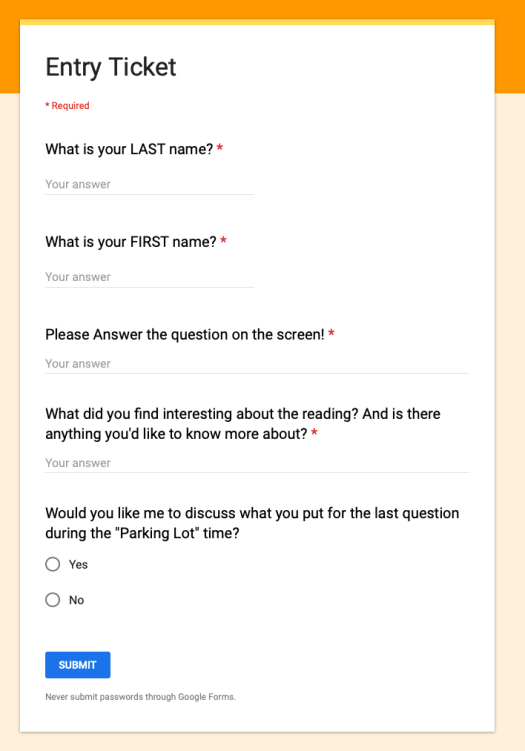
Open up the Entry spreadsheet (which I have bookmarked) and watch the results come in. The students see a form that looks like this, whereas I get a spreadsheet view:
I then update Slide 2 (the ‘parking lot’) in my powerpoint slide deck as things catch my eye. I try to include everything they put “Yes” on and a few things that I find interesting in the other entries.
At the start of class time, I let students know they have 4-5 minutes to complete their entry ticket. Some questions are harder than others, and sometimes students take longer to complete if they have a lot they want to tap out.
About 5 minutes after the start of class time, I let students know that we’re getting started. I typically don’t go over the answer to the question immediately, in case people are finishing up.
Go through slides/activity/etc… for the day.
About 5 minutes until the end of class, put up the last slide in the powerpoint deck. It also has the URL and QR code for a different form (the green form below).
While they’re working on that, I open up the Exit spreadsheet link (bookmarked on the Instructor PC), and watch the results come in. The students see a form that looks like this:
I tell students that I’ll let them know when it’s time to leave, so that the rustling of backpacks and bags isn’t distracting. (“Trust me guys, I’ll let you know when it’s 10:50”)
Around 1 minute left, I usually make some comment about the exit tickets to the class (maybe an observation or a joke), or in some cases I’ll go up to certain students and answer their question or concern (e.g., “Hey AJ – you’re right, it is!”)
After class I sort both spreadsheets, enter the grades into Canvas, enter attendance based off of who responded, and then hide the rows of the spreadsheet so that next time everything is clear. This takes about 10 minutes. Since I’m staying with the same forms and spreadsheets, I can always ‘unhide’ all of the rows if I want historical data, and then re-hide them later.
I’ve found this to work really well this semester. Students are (mostly) reading and engaged. And in the end, it was much easier to set up using Google Forms / Sheets than through Socrative or any other ‘education’ product.
One of the great things about being a professor is that we’re essentially trained to be project managers – people who are specialists in a given topic area but also trained through graduate school to be self-sufficient. It surprises many to learn that when I’m assigned a course to teach, I receive very few ‘mandated’ guidelines. Yes, periodically we have required sections in our syllabi on university policies, or perhaps my curriculum committee (of which I’m a member) requires certain courses to use the same book or have a common assignment. But otherwise, no one tells me what content I must teach, what assignments I must give, or how to evaluate my student’s work. The same is true in the realm of scholarship and service – I am expected to select my own projects, manage them to completion, and provide service to my institution and discipline. When it comes to my formal workday, I’m expected to be in the classroom to teach when assigned, to be available for 10 office hours a week, and to be available for meetings as needed. Beyond that, there is no 8-5 expectation on professors – we’re asked to fit our lives around specific class times, not a traditional workday (Which is also why, at my institution, we don’t get personal leave).
However this level of freedom can be challenging for some. Recently one of my colleagues posted on Twitter a request:
How do you manage to be productive when you do work at home? I usually try very hard to not take work home with me, but when I do I find the quality of work I do is sub par.
As someone who has worked from home a lot in my past (I lived 50 minutes away from my undergrad institution, 120 minutes away from my graduate institution, and a 2 hour commute away from my postdoc), I’ve picked up a few tips I’m happy to share.
1. Have The Essentials At Home
My Home Office Setup, an Apple 27” Cinema Display connected to a 2015 MacBook Pro, with full size keyboard, external trackpad. Wireless headphones and desk fan off to the right.
It is extremely important to have everything you need in your home workspace. In 2010 I bought a 27” Apple Cinema Display for work, and while pricey ($999) I fell in love with it at work. So when I had enough money, I bought a second one for my home office. There is absolutely no way I’d be able to do as much work at home if I didn’t have a large monitor on par with what I have at my office. The portability of a laptop, in my case a 2015 MacBook Pro, is key for a mobile professional – but you need to have a good place to park it at home where you can enjoy larger full-sized screens and peripherals. Also included in the setup is a full keyboard with number pad (essential for entering data), and an external trackpad so I don’t have to reach forward to touch the one on my Mac. Finally I have a set of wireless headphones (Beats Solo 3’s) that I can use to block out the world if need be.
However physical setup is only one part of the essentials – you also need to be able work on anything you need, anywhere you are. To do this, I leverage cloud storage extensively (OneDrive is my preferred storage provider these days, I purchase a home version of Office 365, which provides MS Office + 1 TB of space), as well as iCloud storage. I also install TeamViewer (Free for personal use) on my computer on campus so that I can securely connect up to it remotely in case I do happen to leave a file there. I also never use USB drives if I can avoid them – it’s horrible to have just 1 version of a file, and even worse if you lose the USB drive that the file is stored on, or if the USB drive fails!
2. Have a working To-Do Setup, With Start Dates
One thing I realized years ago was that I needed a To-Do list, and more importantly, I needed one that didn’t show me things I couldn’t do just yet. Having dozens of tasks ahead can be daunting, but it’s even worse when you see things that there is no way you can complete – perhaps you’re waiting on someone else, or they’ve told you “We’ll make a decision on that 3 months from now”. Leave the to-do on the list, and you feel like you’re not accomplishing anything. Take it off, and you never remember to put it back.
So years ago I started setting “start” dates on all of my tasks, so that I wouldn’t see them on my list until the first day I could do them. This helps me focus much more on what I need to do, versus what I will do down the line. It also means that I don’t fear putting a task on my list for the far future. I’ve actually had people remark to me “Wow, I can’t believe you remembered that” – it wasn’t memory, it was the item I put on my to-do list a year ago!
3. Be Mobile
I didn’t have an office for the first half of my professional life. I lived completely out of a bag, setting up shop at coffee shops, fast food restaurants, libraries, and in my car. As a former Windows Mobile MVP, I learned a number of tricks for staying productive while away from a dedicated workspace. They include…
Having a dedicated set of mobile tools – power cables, chargers, mobile mouse, anything I could possibly need. I don’t take all of them everywhere everyday, but I do keep them in a special case at home, so I can easily pull out what I need for that day. Also makes traveling a breeze – everything is in one place, and I don’t have to tear apart my home every time I pack – my bedside charger stays where it is, for example.
Exploring all possible productivity applications to see if they’re worthwhile. Some are, some aren’t. For example, recently I’ve been using Siri Shortcuts on my iPhone and iPad to script my nightly journal entry, to quickly open up files that I use frequently (e.g., open this specific spreadsheet), and more. Lately the mobile Microsoft Office suite has really stepped up it’s game – I can pull up pretty much anything on my phone or iPad that I can bring up on my computer.
Upgrade your tools as needed and use them to your advantage. See this as an investment in yourself and your productivity. While it’s tempting to tell people “Look, I just use my phone to make phone calls”, you’re basically saying to them “Look, I use this thing for just a small fraction of what it can do.”
4. Stop saying “I don’t have time”
I’ve heard people say “I don’t have time to learn X” or “I don’t have time to work on Y”. To them, I say “You can’t afford NOT to learn X” or “work on Y”. XKCD comics has a good example of what I mean here – this one. Think of learning new skills as an investment – one that crosses over from work to personal life, office to home productivity.
5. Have a Clear Goal
Finally, when I’m working remotely, I realize I need a clear goal of what I need to do. When working at my office, this happens somewhat naturally – my mind natively thinks of things that I do at work. However when I’m out of my office, I need to remind myself (with the help of my to-do list) what needs to get done, when it needs to get done, and what today’s task builds on for the future. It helps me avoid distraction, because I know what needs to get done. I’m not wandering aimlessly at home thinking “Wouldn’t it be more fulfilling to watch TV right now” – I instead have the thought “It’s going to be great to get this done before I go to my office tomorrow morning”.
Working from home (or anywhere other than your office) is a freeing experience, and something that I definitely think is useful for an academic – part of our jobs is to be in tune with the world around us, lest we become antiquated. However it can be challenging, and ultimately everyone finds their own solution. Just keep plugging away at the problems you find in your own system until you have it up and running smoothly!
Ran across this nice little trick a few months back. One of the things I miss about SAS was the ability to copy/paste data directly into a SAS script. While it’s nice to load from an external file, for small datasets it can be more useful to have everything in just one file. This is especially useful with students who have trouble understanding the concept of a working directory or file paths in a smartphone app dominated world.
Here’s what I found months ago (I believe on Stack Overflow):
Input = ("Student Pretest Posttest
A 25 27
B 23 23
C 21 22
D 23 29
E 23 24
F 21 19
");
Data = read.table(textConnection(Input),header=TRUE)
t.test(Data$Pretest,Data$Posttest,paired=T)
There are no line numbers on that snippet – you’ve simply got 5 variables with 5 lines of data. The data is then read through a textConnection function into a data table. You can now work with it as you would any other data set.